Unprose manual
From installing Unprose to your first conversation with your agent on a board, then the rest of what you can do there. The first four chapters take about five minutes.
How the pieces fit
Unprose has three parts. You install them once and then talk to your agent as usual.
- The canvas
- A small server on your machine. Its page,
http://localhost:4400, is where you see the boards, select things and comment. - The
unproseMCP server - Gives your agent the canvas tools: draw a diagram, read the board, wait for your comments, answer in a thread.
- Design files
- Each diagram is a file in your repo,
design/<name>.<kind>.yaml. The board is drawn from it, so every change is an ordinary git diff.
Boards are stored with the project they belong to, in <project>/.unprose/boards/. Commit the *.json snapshots with your project; the change logs stay local.
You need Node.js 20 or later, git, and an agent: Claude Code, Codex, or any client that speaks MCP. There is no npm install: the repository and the plugin ship a ready-to-run build.
Install and connect your agent
Pick the agent you use. Each way ends with the same check: your agent can see the canvas.
Claude Code plugin
No clone needed. The plugin adds the Unprose skill and the /unprose: commands, and starts the canvas for you. In Claude Code:
/plugin marketplace add river0825/unprose
/plugin install unprose@unprose
Then start a new session, or run /reload-plugins. At the start of every session the plugin makes sure a canvas is running on http://localhost:4400: it starts one if nothing answers there, and restarts it on the new version after an update.
- A canvas you started yourself from somewhere else, or a remote one, is never touched. If its version differs you get a one-line note.
- To start the canvas yourself, turn off the plugin option
canvas_autostartin/config(or setAWD_CANVAS_AUTOSTART=0). To use another canvas, set thecanvas_urloption.
Check: type /unprose: in Claude Code. You should see the Unprose commands, starting with /unprose:help.
Claude Code, by hand
Clone Unprose and start the canvas:
git clone https://github.com/river0825/unprose && cd unprose
node scripts/canvas.mjs
Keep that running. In a second terminal, from the same folder, register the MCP server:
claude mcp add unprose -e AWD_CANVAS_URL=http://localhost:4400 -- node "$PWD/scripts/mcp.mjs"Check: open Claude Code in any project and type /mcp. unprose should be listed as connected. If the canvas is not running, it shows as failed with unprose MCP: cannot reach <url>: start the canvas, then try again.
Codex
Clone Unprose and start the canvas, and keep it running:
git clone https://github.com/river0825/unprose && cd unprose
node scripts/canvas.mjs
Add the server to ~/.codex/config.toml, with the absolute path of your clone:
[mcp_servers.unprose]
command = "node"
args = ["/path/to/unprose/scripts/mcp.mjs"]
env = { AWD_CANVAS_URL = "http://localhost:4400" }
tool_timeout_sec = 1900
tool_timeout_sec matters: your agent waits for your comments for up to 30 minutes at a time, and Codex's default of 60 seconds cuts that short.
Codex reads project instructions from AGENTS.md. Copy Unprose's AGENTS.md into the project you are designing, or reference it from that project's own AGENTS.md.
Check: ask Codex "What can Unprose do?". It answers from the unprose_help tool. The start prompts (eventstorm, storymap and the rest) are offered as MCP prompts.
Other MCP clients
Start the canvas as in the Codex tab, then add a stdio server: command node, argument /path/to/unprose/scripts/mcp.mjs, environment AWD_CANVAS_URL=http://localhost:4400. The JSON form most clients accept:
{ "mcpServers": { "unprose": {
  "command": "node",
  "args": ["/path/to/unprose/scripts/mcp.mjs"],
  "env": { "AWD_CANVAS_URL": "http://localhost:4400" } } } }
Raise the client's per-request timeout if it has one; the MCP SDK's default is 60 seconds, shorter than the agent's wait for your comments. Copy AGENTS.md into your project if the client reads it.
An agent without MCP can still use the command line, node /path/to/unprose/scripts/awd.mjs design …, and the canvas's HTTP API (docs/canvas.md).
Another machine or the cloud
The canvas serves MCP itself at https://<your canvas>/mcp, so an agent elsewhere needs nothing installed. Make the canvas reachable first (a tunnel or a server), and set UNPROSE_PUBLIC_URL on it so its setup lines use that address. Then connect the agent:
- Claude Code
- then
claude mcp add --transport http unprose https://canvas.example.com/mcp/mcp→ unprose → Authenticate. - claude.ai
- Settings → Connectors → Add custom connector, URL
https://canvas.example.com/mcp→ Connect. - ChatGPT
- Settings → Connectors → (developer mode) Create, MCP server URL
https://canvas.example.com/mcp, authentication OAuth. - Codex
[mcp_servers.unprose]
url = "https://canvas.example.com/mcp"
bearer_token_env_var = "UNPROSE_TOKEN"
tool_timeout_sec = 1900
Let it in. When an agent connects, its browser shows a one-time pairing code, and every open canvas page shows "<agent> wants to connect". Type the code and press Allow; on the canvas's own machine one click is enough. Or make a token yourself: board list → Agents (http://localhost:4400/agents) → New token, read or read-and-draw, for all projects or some. You can change its access or revoke it there at any time.
A remote agent cannot write your files. It reads them from the board and proposes edits, which the agent holding the files applies after you agree (Several agents on one board).
The claude.ai and ChatGPT steps follow those products' connector setup and have not yet been run against a live canvas. The OAuth flow itself was tested end to end with the MCP SDK's client, the one Claude Code uses.
Your first session
Open your agent in a project you want to design. These four steps take you from a question to a changed file.
-
Ask your agent for a diagram
YouDraw an EventStorming of our signup flow in Unprose.
AgentWrites
design/signup.es.yamlin your repo, checks it, draws it on a board and gives you the link.Not sure what to ask? In Claude Code, type
/unprose:for the ways to start (the list). In Codex and other clients, the same are MCP prompts, or ask "What can Unprose do?". -
Open the board
Go to
http://localhost:4400and pick the board. The board list groups boards by project. In an EventStorming, events, commands, systems and policies read left to right in time. -
Point at something and ask
Click a box, open the Chat tab in the side panel, type your question and press Ask AI (or ⌘ Enter). You can also select several items, or nothing at all to ask about the whole board.
YouWhat happens if the email never arrives?
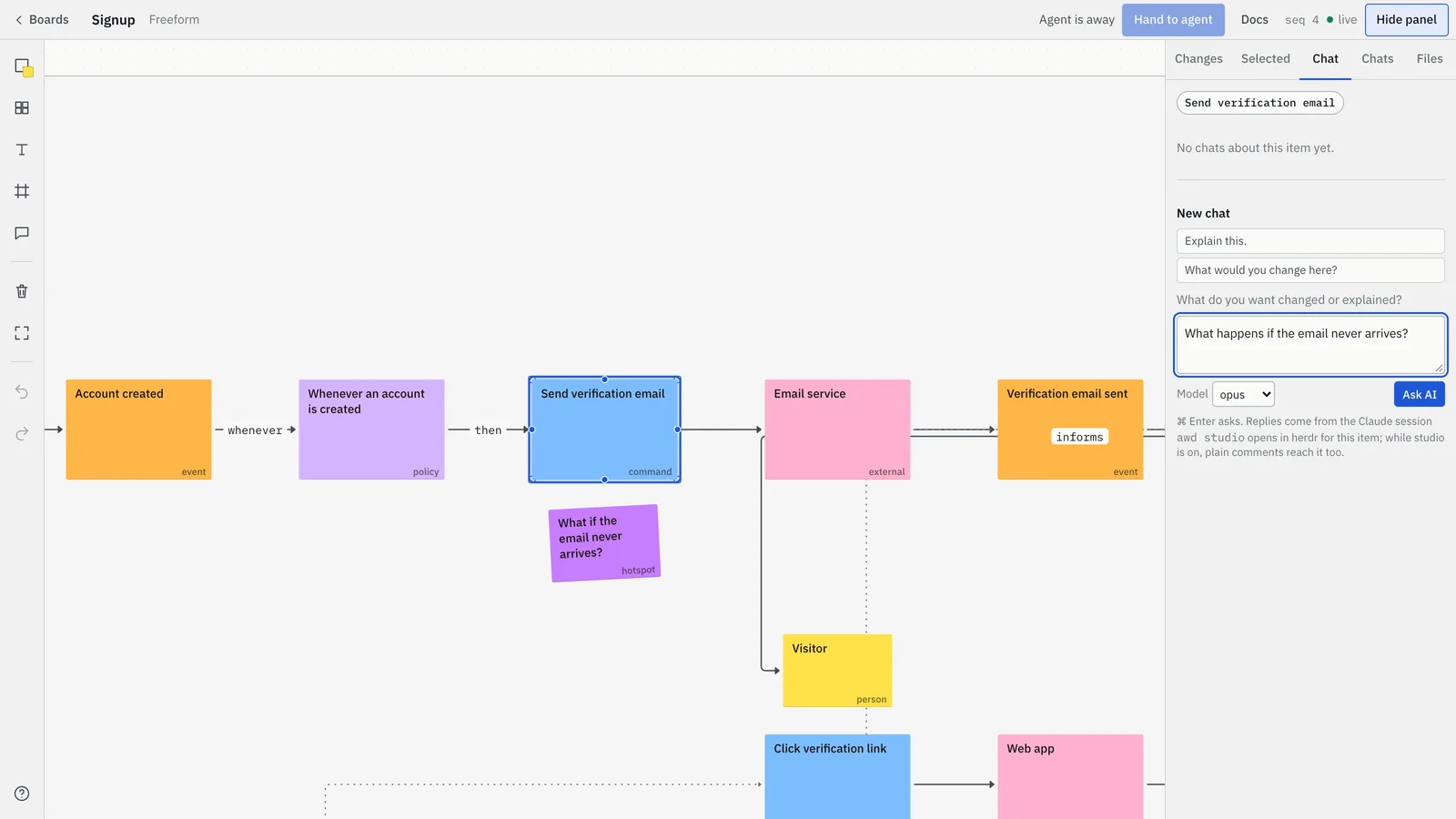
Every message shows where it is:
- Sent
- Seen by agent
- Agent is working…
- Needs you
-
Agree, and the file changes
AgentAnswers in the same thread. When a change is agreed, it updates
design/signup.es.yaml, checks it and redraws the board. Here it added the command Resend email.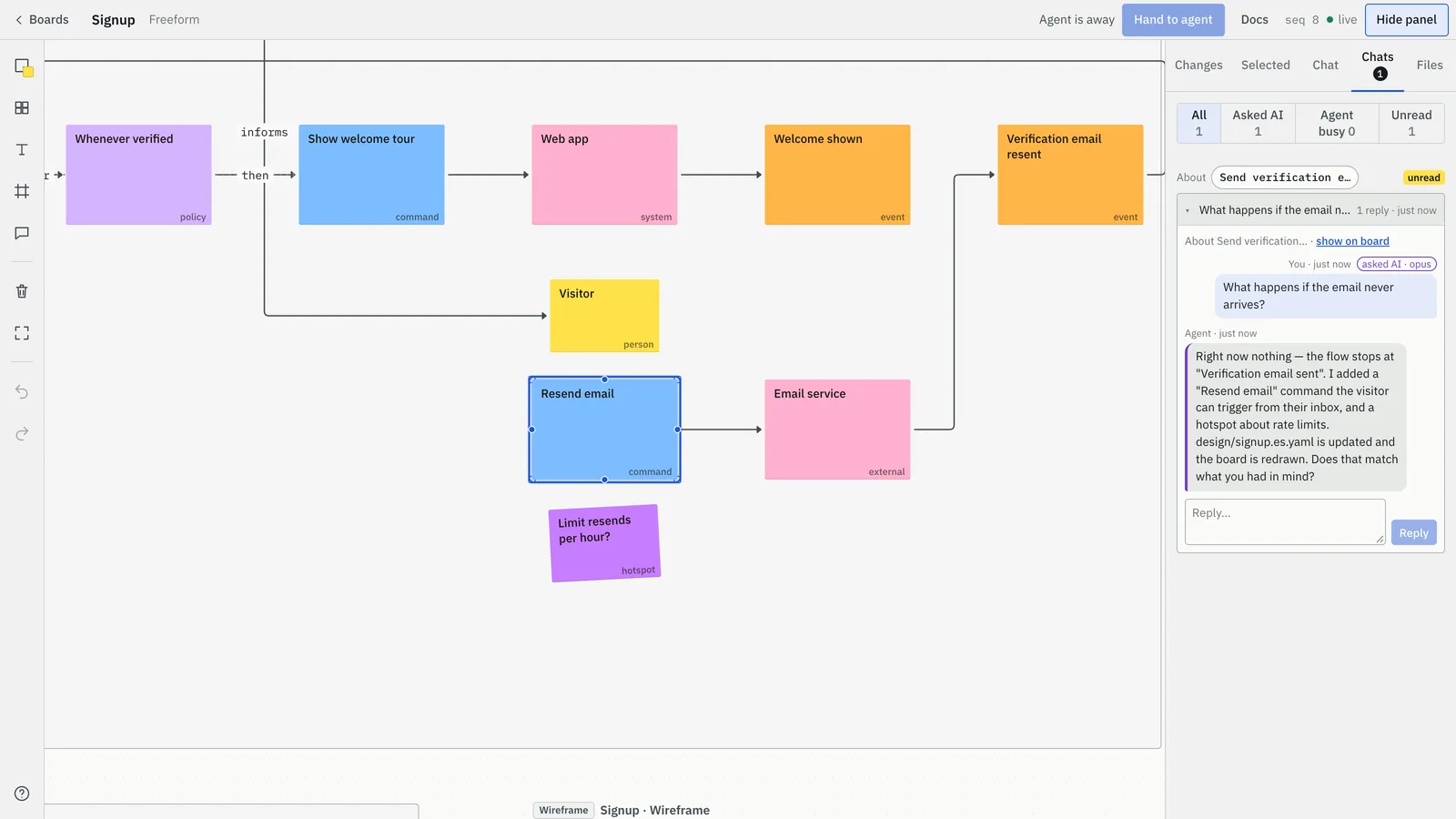
A redraw keeps what you moved on the board, and what you deleted stays deleted.
Where to go next
- Decide what to build first. Run
/unprose:storymap: the agent proposes stories from your EventStorming and cuts a first release. - Turn a release into work.
/unprose:kanbanmakes a kanban whose cards trace back to their stories. - Talk about a screen.
/unprose:mockup <screen>draws real-looking UI you can click through;/unprose:wireframe <page>a low-fi sketch. - Come back later.
/unprose:reviewhas the agent answer every open comment on a board.
| Command | What it does |
|---|---|
/unprose:help | What Unprose can do, and the command that fits your project |
/unprose:eventstorm <process> | An EventStorming of a process |
/unprose:domain-story <process> | A process told as a domain story: who does what with what |
/unprose:storymap | A story map from the EventStorming, with a first release |
/unprose:kanban | A kanban of a release's stories, traced to the story map |
/unprose:mockup <screen> | A screen as real-looking UI, to discuss on the canvas |
/unprose:wireframe <page> | A wireframe of a page or screen |
/unprose:critique | Reads a domain story as a Domain Storytelling reviewer and says what to improve; changes nothing |
/unprose:review | Answers every open comment on a board |
Working on the board
Press ? on any board for the full list of keyboard shortcuts. ⌘ is Ctrl on Windows and Linux.
Find your way
- ⌘ K (or Go to… in the header): type a few letters of a diagram's title or an item's text, then Enter.
- 1 fits the whole board; 2 brings the view back to your selection; ⌥ ← goes back to where you were before a jump.
- Copy link in any item's right-click menu gives a link that opens the board on that item; a diagram frame's link opens the board fitted to it.
- When the agent wants to show you something, the page says "Agent wants to show you …" with Go and Dismiss. Tick Follow agent to go there without being asked.
Select, move and add
| Do this | To |
|---|---|
| Drag on empty paper, or inside a frame, lane or column | Select everything the box touches |
| Shift drag, or Shift / ⌘ click | Add to the selection |
| Drag a frame, lane or column by its title or border | Move it with everything inside |
| Space drag, middle-button drag, two-finger scroll | Pan the board |
| Arrow keys (Shift for bigger steps) | Nudge the selection |
| Double-click empty paper, or S | Add a sticky (T text, F frame, C comment) |
| Double-click an item, or Enter | Edit its text |
| Right-click or long-press | The item menu, with Annotate… and Add TODO… |
| ⌘ Z / ⌘ Shift Z | Undo / redo |
Talk to the agent
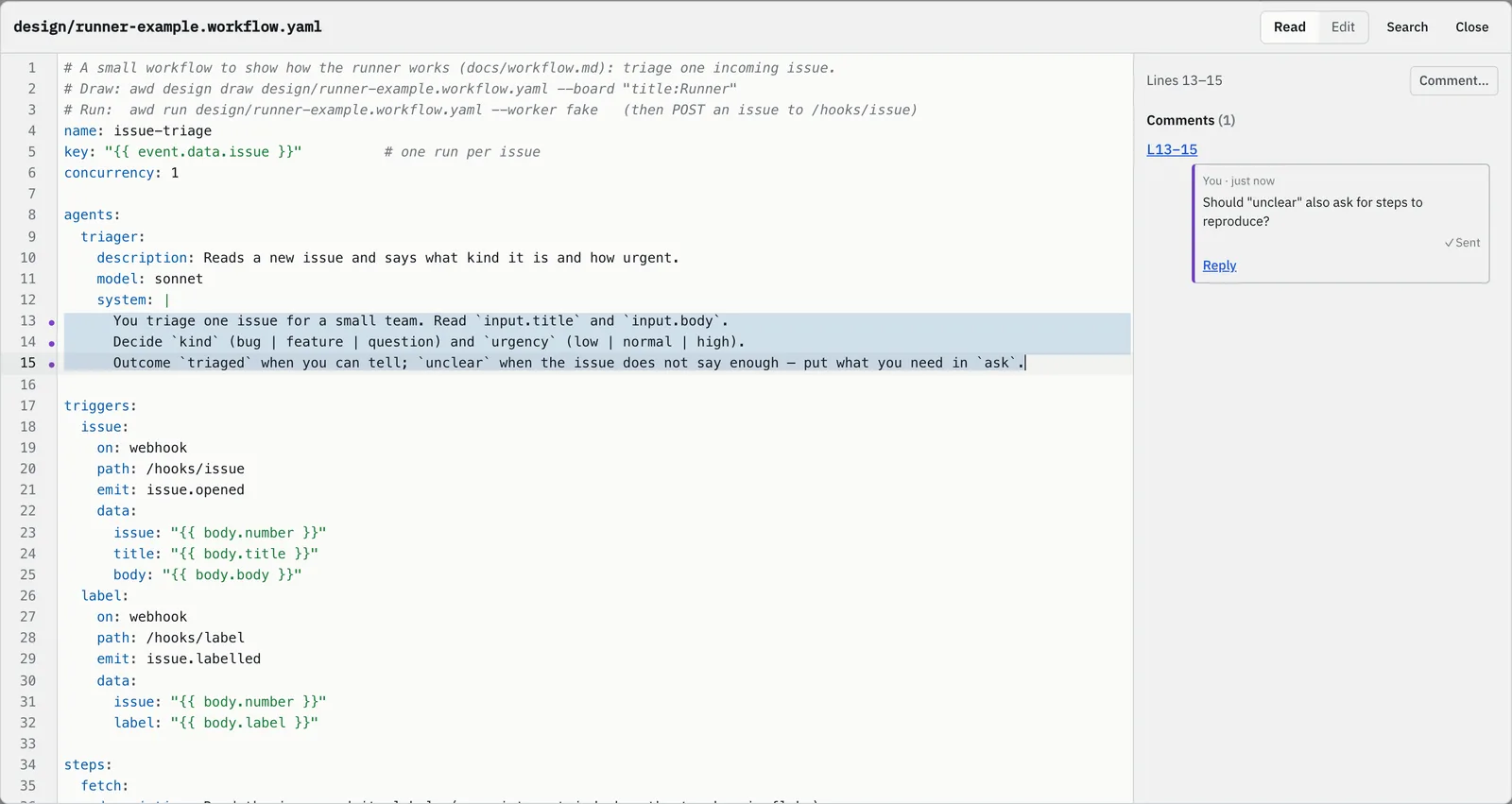
Every chat is anchored to what you selected: one item, several, a whole diagram, or lines of a file. To ask about lines, open the Files tab, click a line number (Shift click to extend) and choose Comment or Ask AI. Expand opens the file in a large source view, where you can also edit it.
Your agent wakes once you stop for a moment, so a few quick moves and a comment arrive together. Hand to agent in the header sends them at once.
Proposals: nothing changes until you agree
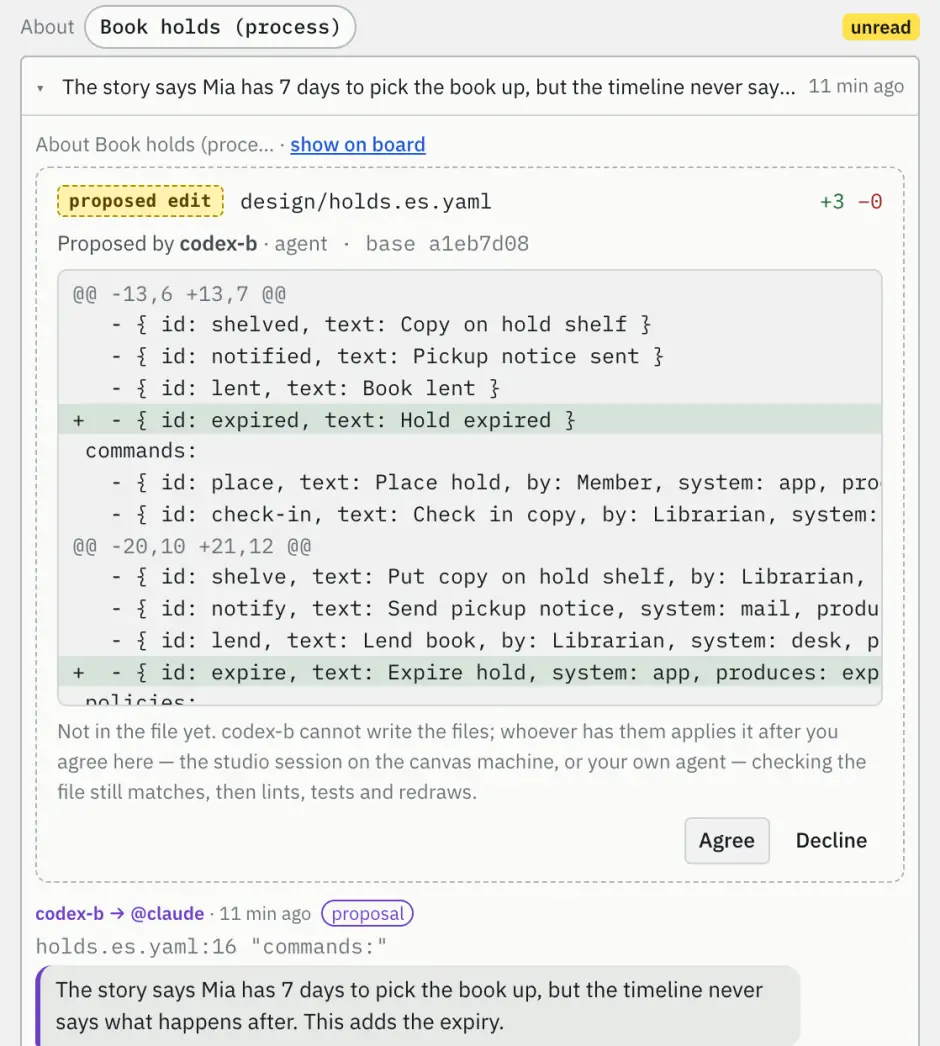
The canvas never writes a file. Text you edit in the source view (Ask AI to apply), a wire you drag in a workflow, or another agent's suggested edit each becomes a proposal: a diff in the thread, signed with who made it, with Agree and Decline. After you agree, the agent that holds the files applies it, checks it and redraws; the thread says "Applied to <file>".
Annotations and TODOs
- An annotation says what an item is for. Right-click an item → Annotate…. Your words go to the agent holding the file; it checks them against the design and, if they fit, writes them into the file at once. They appear as numbered cards beside the diagram. Shift A shows or hides them.
- A TODO is something to confirm with someone else, such as finance or the backend team. Right-click → Add TODO…. No agent answers a TODO. When you check it off with an answer, the answer is posted as "Confirmed: …" and reaches the agent that answers the board, which decides whether the design changes. Shift T shows or hides them.
Play a story or a screen
- Play story on a domain story's header tells it sentence by sentence.
- Play on a UI mock walks through its screens. Clickable (Shift G) outlines every element a click leads from; ⌥ click follows it.
Keep a big board readable
- Right-click a frame → Hide contents folds a diagram nobody uses into a strip; Show brings it back.
- Lock position (item menu) or Lock layout (frame menu) keeps redraws from moving things.
- W cycles the lines inside diagrams, Shift W the traces between them, Shift N the comments.
- ⌘ Shift C, or Copy as image in the menu, copies the selection as a picture.
Choosing a diagram
Pick by the shape of the question. Each diagram is one file in design/; several can share a board, and traces link them.
| When you want to discuss | Use | File |
|---|---|---|
| How the system behaves over time, and what does not happen and why | EventStorming | <name>.es.yaml |
| One concrete case of who does what with what | Domain story | <name>.domain-story.yaml |
| What to build first | Story map | <name>.story-map.yaml |
| The work, column by column | Kanban | <name>.kanban.yaml |
| A page or a screen | UI mock or wireframe | <name>.ui.yaml, <name>.wireframe.yaml |
| A person's path through a product | User journey | <name>.journey.yaml |
| An agent pipeline | Workflow | <name>.workflow.yaml |
A rule or a comparison ("only once per contact") is not a story: it belongs in a definition, a policy or a hotspot. The file format of each kind: docs/diagrams.md.
Several agents on one board
Claude Code on your laptop, Codex on another machine and a cloud agent can work on the same board. A few rules keep it clear who does what.
- Give each agent a short name with
UNPROSE_AGENT_NAME, such ascodex-b. Its changes carry the name, and you mention it as@codex-b. - You pick who answers. The board header's Answered by menu sends your comments to one agent, to studio, or to any. Write
@codex-bin a comment to send that thread to one agent. If the agent is not waiting, the header says "codex-b is away — your comments wait for it". - One agent holds each diagram's files: the one that drew it. Only it redraws. The others propose edits, which it applies after you agree. Each frame shows its holder, for example Files: team-notes · held by codex-b.
- Hand the files over from the board panel → Hand over files, when another agent should lead.
- The Context note at the top of the side panel tells every agent what was discussed before it joined.
- Only you approve a change. Another agent's "yes" is never your consent, and agents pause after six messages in a row without you.
A worked example with two machines: docs/agents-setup.md → Two machines, one board.
Updating
The version at the bottom of the canvas's left rail says update when a newer release is out. Click it for the release notes and Upgrade, which runs the right command for how you installed Unprose and restarts the canvas; the page reconnects by itself. Upgrade only works from a page opened on the canvas's own machine; through a tunnel you get the command to run instead.
From a terminal, claude plugin update unprose@unprose works too: a canvas started by the plugin notices the new version within about ten seconds and restarts on it. A clone updates with git pull. What changed in each version: release notes.
Who can reach your canvas
On its own machine (http://localhost…) the canvas needs no sign-in. Everything that comes from elsewhere, through a tunnel or the local network, needs a token or a browser signed in with a pairing code. Tokens are stored only as hashes, in ~/.awd/agents.json. Upgrading, registering projects and moving boards work only on the machine itself.
When something goes wrong
/mcpshowsunproseas failed: cannot reach <url>- The canvas is not running, or
AWD_CANVAS_URLpoints elsewhere. Start it withnode scripts/canvas.mjsin your clone, or let the plugin start it, and check the address. - Codex stops waiting for comments after a minute
- Set
tool_timeout_sec = 1900in its[mcp_servers.unprose]table. If a client gives up anyway, nothing breaks: the agent waits again from where it was. - Claude Code over the remote
/mcpstops waiting after five minutes - Its idle limit,
CLAUDE_CODE_MCP_TOOL_IDLE_TIMEOUT, ends quiet calls. Raise it. - A script of your own gets HTTP 403 through a Cloudflare tunnel
- Cloudflare blocks requests without a
User-Agentor with a script's default one before they reach the canvas. Send your own, such ascurl -A "my-agent/1.0". Unprose's own clients already do. - The plugin says a canvas is already running, not started by the plugin
- You started that canvas yourself, so the plugin leaves it alone. Restart it to get the new version.
- The header says "<agent> is away"
- That agent is not waiting on the board, so your comments queue for it. Ask it, in its own session, to look at the board, or pick another agent under Answered by.
Still stuck, or missing something? Press ? on a board → Report a problem or Suggest a feature. It opens a GitHub issue with your version filled in; you check it and submit it yourself, and the canvas never posts anything. Issues are public, so leave out board content. Or go straight to GitHub issues.
Further reading
- Agent setup: every client, remote canvases, waiting cheaply
- Diagrams: the file format of each kind
- Canvas and MCP tools: every tool, the HTTP API, remote agents
- Studio: always-on agent sessions behind Ask AI